Thank you!
Thank you for purchasing Wedding Paradise – WordPress Theme. We are happy that you are one of our customers and we assure you won't be disappointed. We do our best to Develop best themes with great functionality, designs and human readable code.
If you have any questions that are beyond the scope of this help file, you can create support ticket at http://flockthemes.com/help-support/ or email us on support@flockthemes.com.
Created / Updated on: 08-06-2020 Version: 1.4About our Theme and Team
Wedding Paradise is a responsive and clean Wedding Wordpress Template, made by a team of creative professionals here at Flock Themes.
Our team is constantly working on this theme to deliver more out it. If you have any suggestions/ feature request kindly send email to suggestions@flockthemes.com. We would love hear from you.
Rate Our Theme
Don't forget to rate this theme on ThemeForest – Let others know how much you love our work. We appreciate you for taking out sometime to write about your best experience. You can rate it in the "Downloads" section of your account.
License
With ThemeForest regular license you are licensed to use this theme to create one single End Product (the final website customized with your content) for yourself or for one client. In short:
What is allowed with single regular license:- You can create one website for yourself or for your client and you can transfer that single website to your client for any fee. This license is then transferred to your client.
- You can install the theme on your test server for testing/development purposes (that installation shouldn't be available to the public).
- You can modify or manipulate the theme, you can combine it with other works to create the End Product.
- Theme updates for that single End Product (website) are free.
- With single regular license it is not allowed to create multiple websites. For multiple websites you will need multiple regular licenses.
- To resell the same website (Single End Product) to another clients. You will need to purchase an extended license for this.
For more information about licenses, please refer to ThemeForest:
Help & Support
Please read this user guide carefully, it will help you eliminate most of potential issues using this template.
If you have any questions that are beyond the scope of this help file, you can create support ticket at http://flockthemes.com/help-support/ or email us on support@flockthemes.com.
We will respond as soon as possible within 24 hours. Please make sure you take a look at the available resources before submitting a support request.
Getting Started
Please read this user guide carefully, it will help you eliminate most of potential issues using this template.
Files & Structure
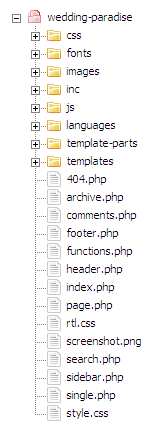
Software
Below are software which you may find useful to edit the template and upload to server
- Filezilla - https://filezilla-project.org/ Free FTP Client for uploading your files to server / you can use wordpress to upload the theme.
Theme Installation
Step 1 - Theme Uploading
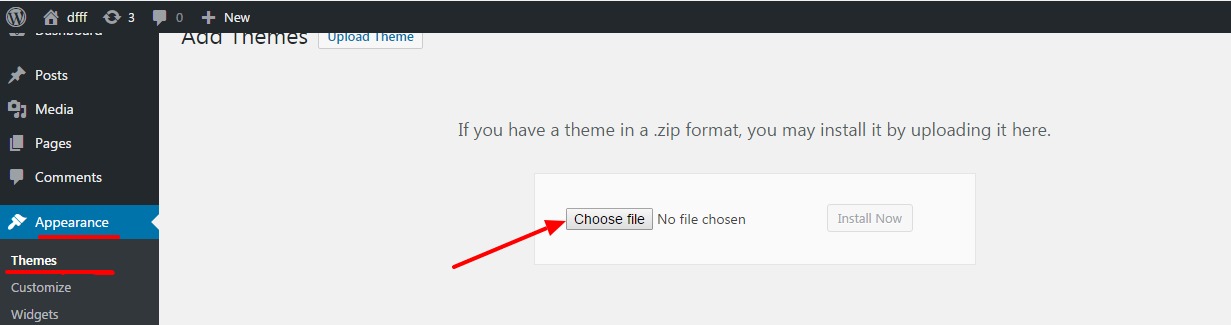
Please log in to your administration panel. Go to the Appearance panel, then Themes. Click on the Add New button then Upload Theme button.
Step 2 - Installing Required Plugins
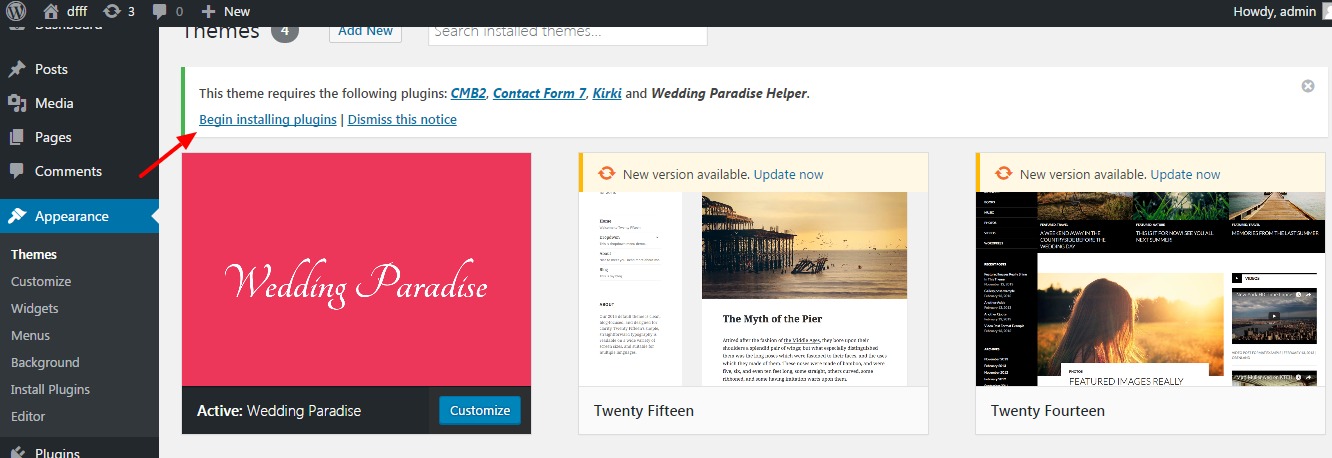
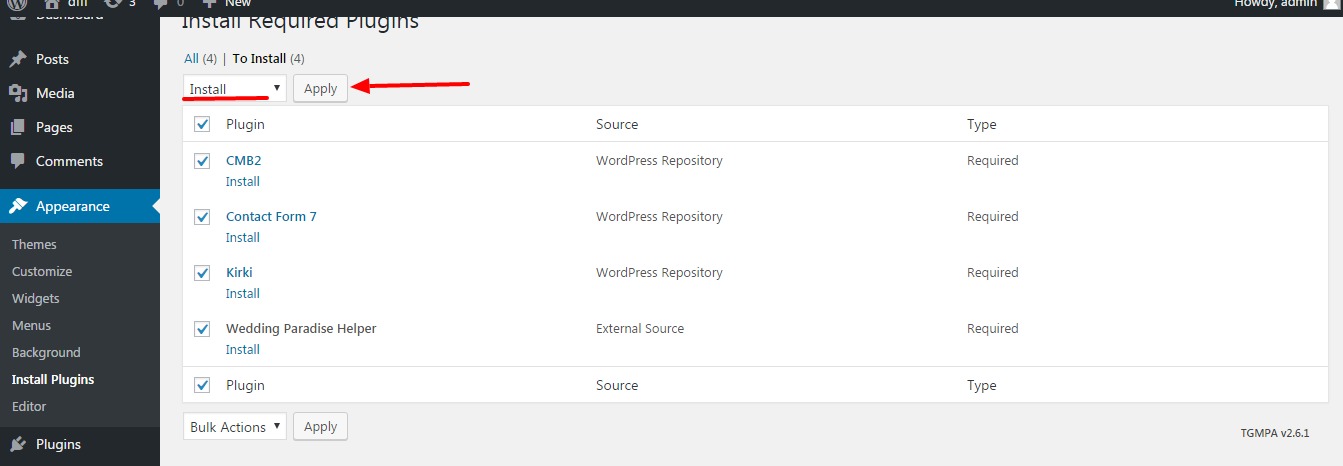
Click on begin Installing Plugins, select all plugins and select install and click apply button.
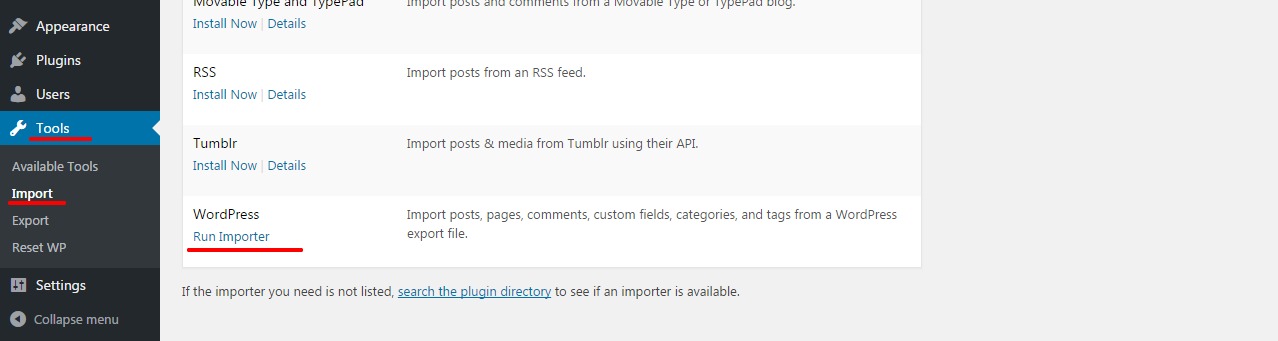
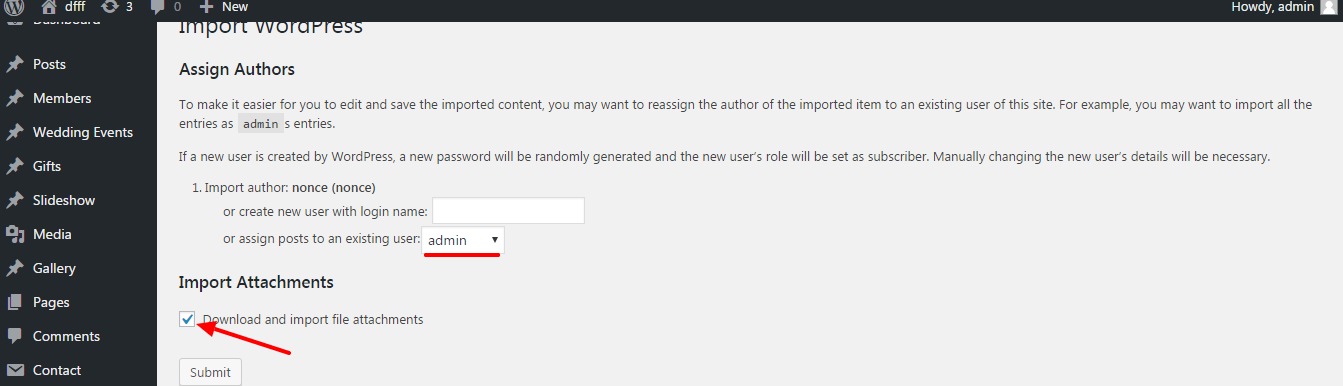
Step 3 - Import Contents
Upload XML file provided along with theme package. then click on assign post and select admin and select download all attachments.
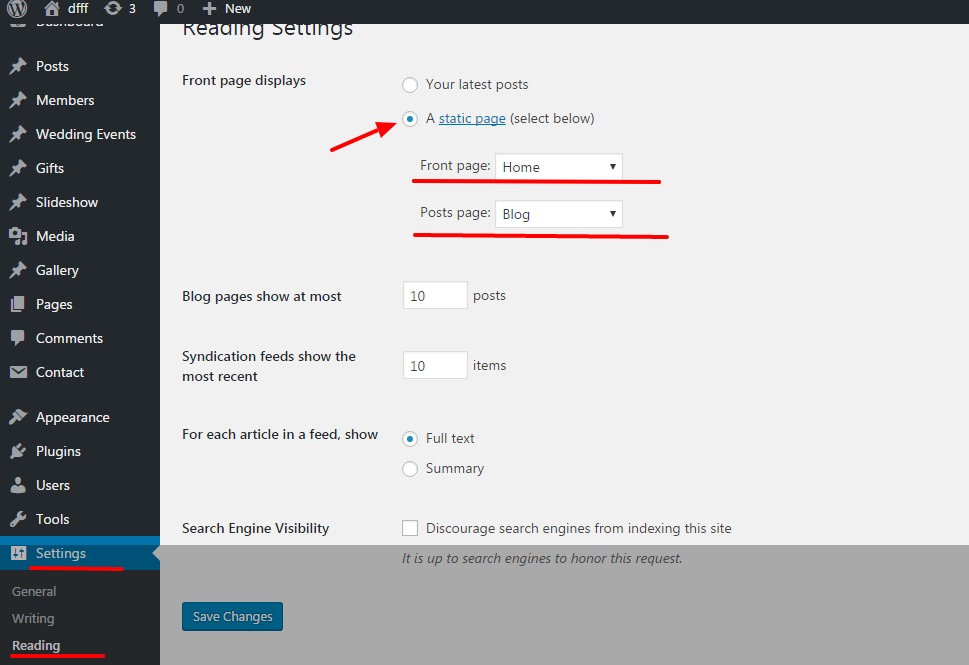
Step 4 - Assigning Front Page and Blog Page
Choose a static page and select home for front page and blog for posts page accordingly.
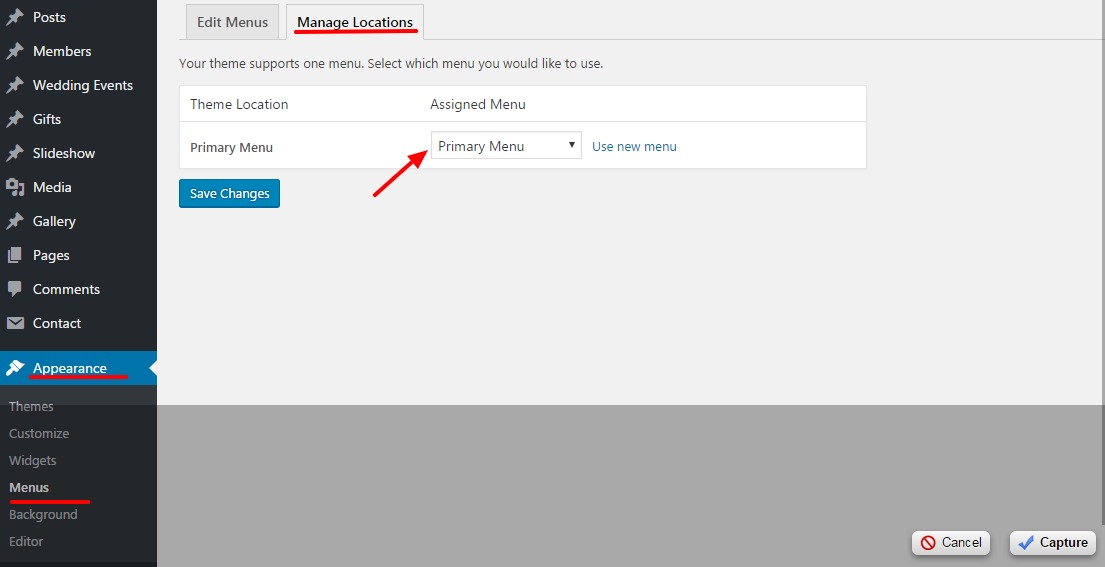
Step 5 - Assigning Menu
Select tab Manage Locations and select primary menu as primary menu.
Theme Customization
Changing Theme Skin
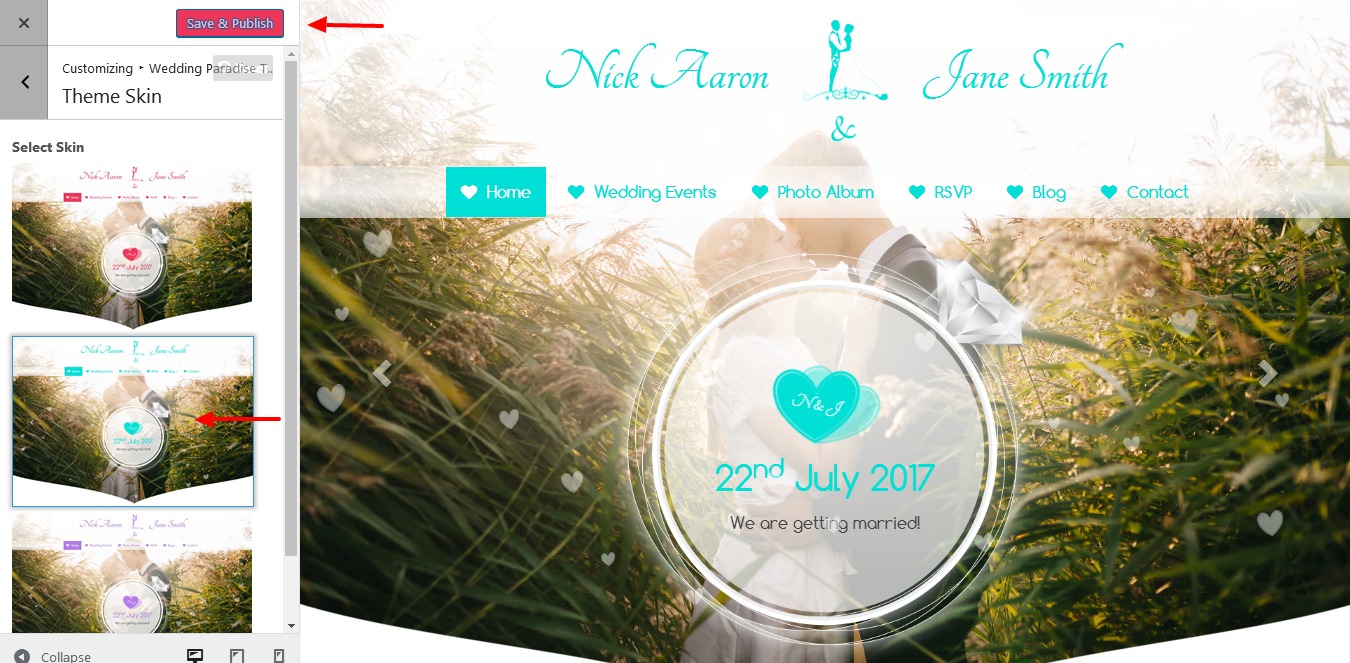
Go to menu Appearance > Customize. Now you'll see Customization Panel.
Now open Wedding paradise Theme section > Theme Skin. Here select required color scheme and Click on Save & Publish
Typography
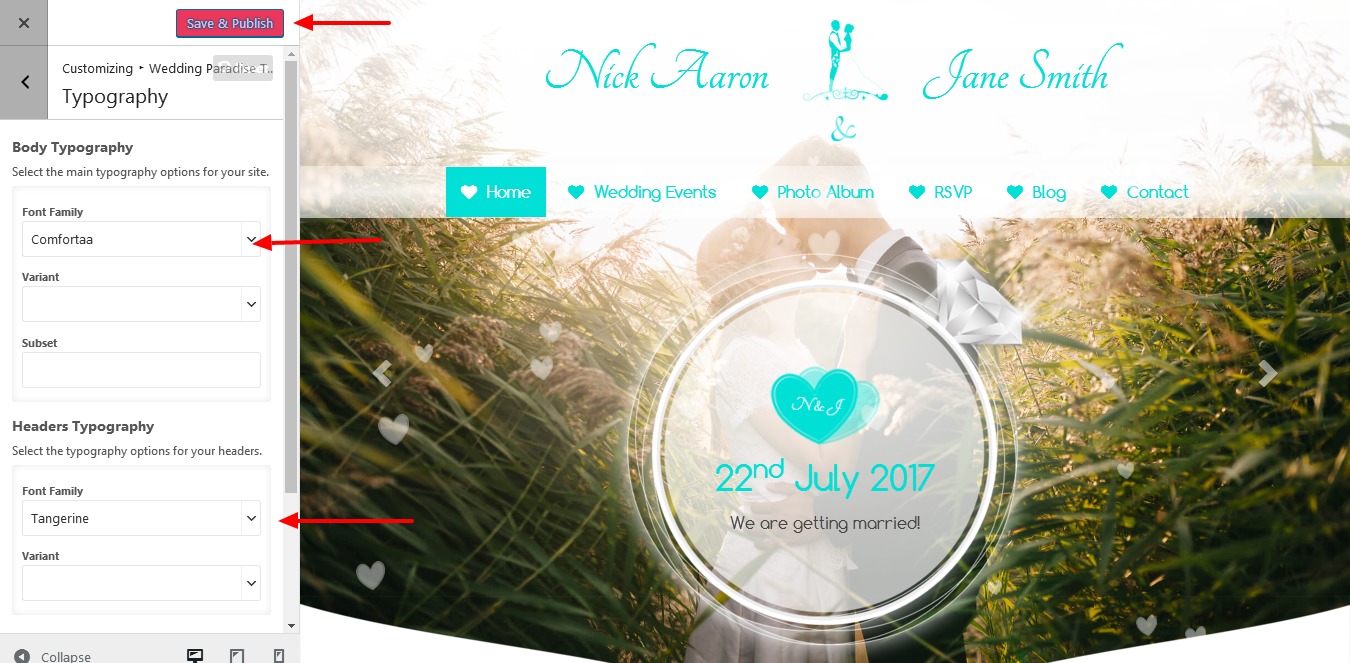
Go to menu Appearance > Customize. Now you'll see Customization Panel.
Now open Wedding paradise Theme section > Typography. Here you can change Typography and Click on Save & Publish
Wedding Date & Time
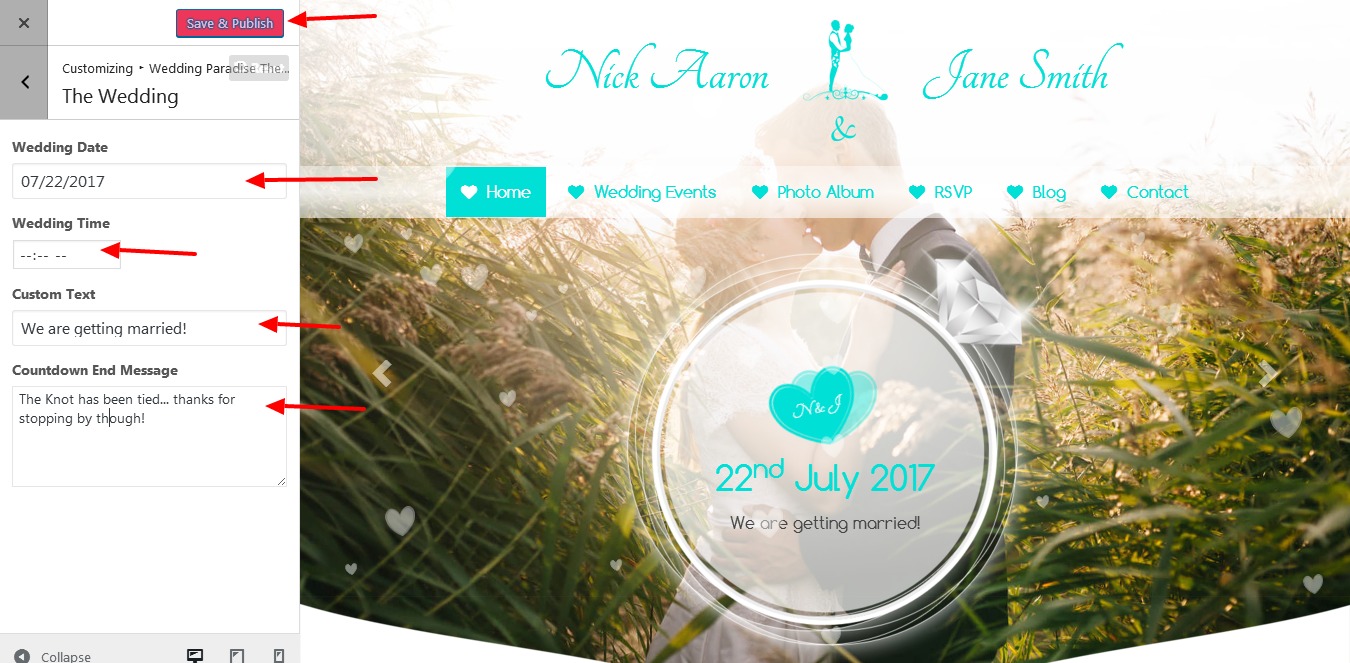
Go to menu Appearance > Customize. Now you'll see Customization Panel.
Now open Wedding paradise Theme section > The Wedding. Here you can update Wedding Time / Date and Click on Save & Publish
Bride and Groom Details
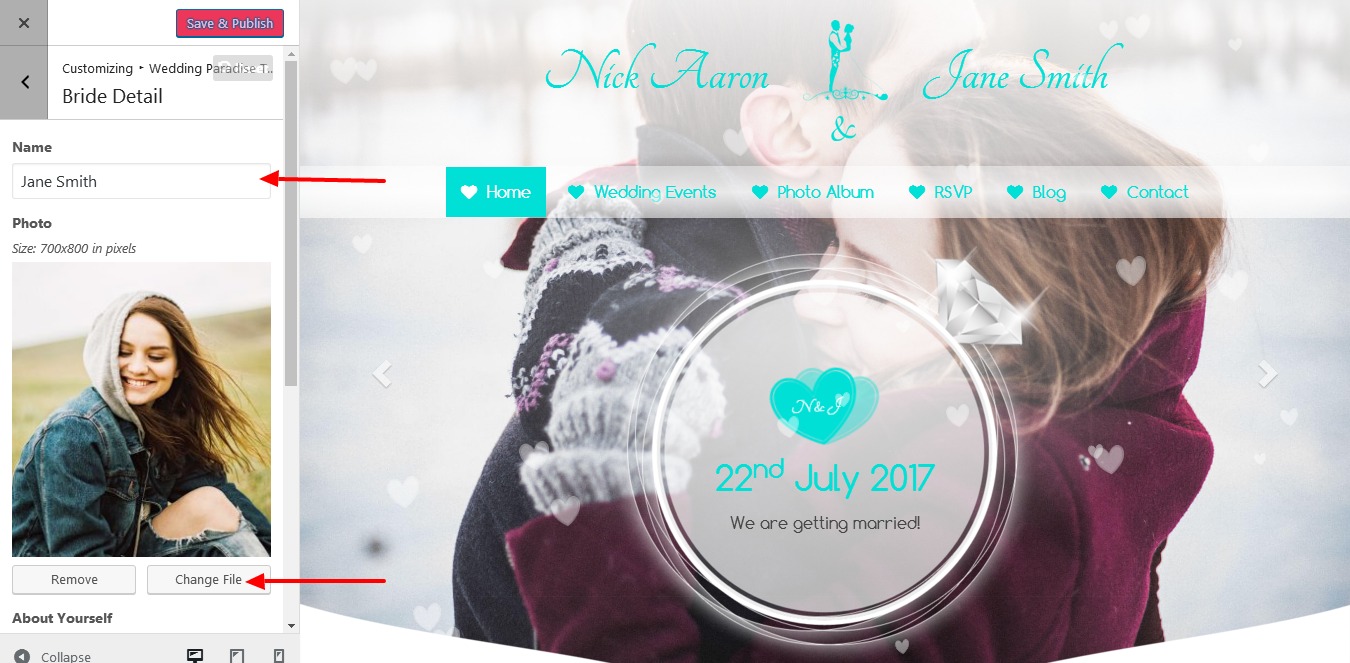
Go to menu Appearance > Customize. Now you'll see Customization Panel.
Now open Wedding paradise Theme section > Bride Detail. Here you can update Bride / Groom Details and Click on Save & Publish
Page Settings
Go to menu Appearance > Customize. Now you'll see Customization Panel.
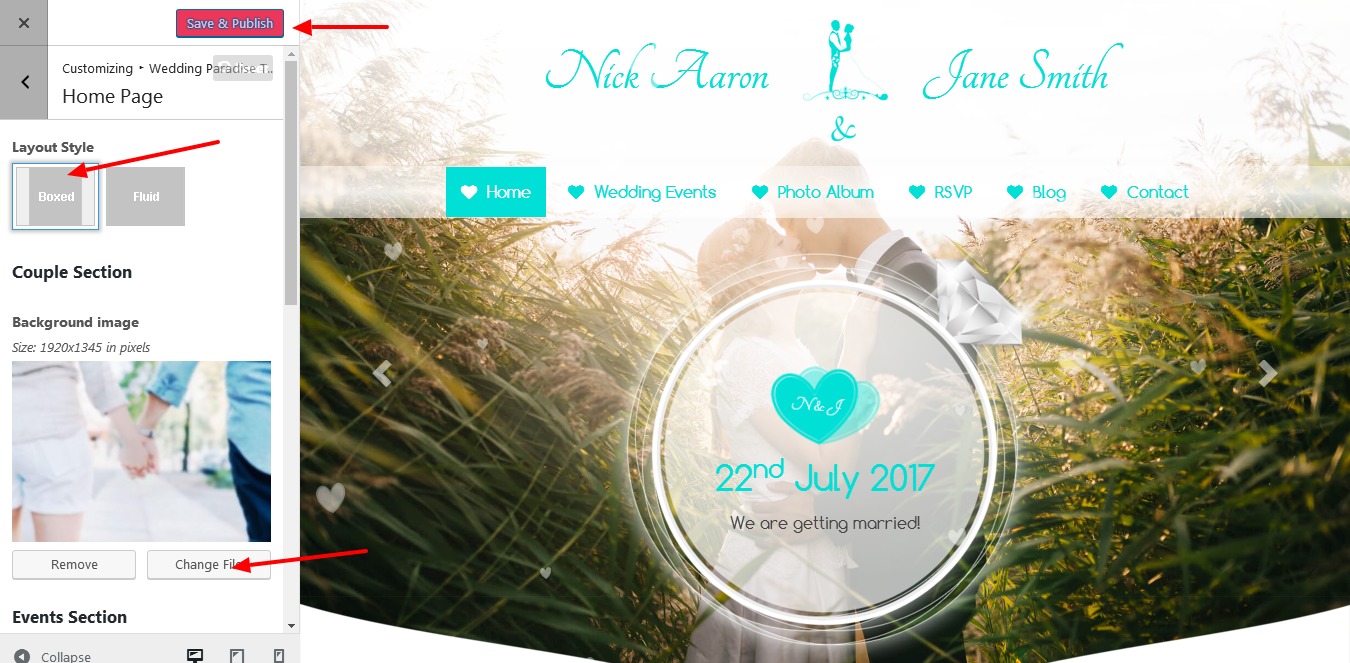
Now open Wedding paradise Theme section > Home Page. Here you can update Home Page Details and Click on Save & Publish
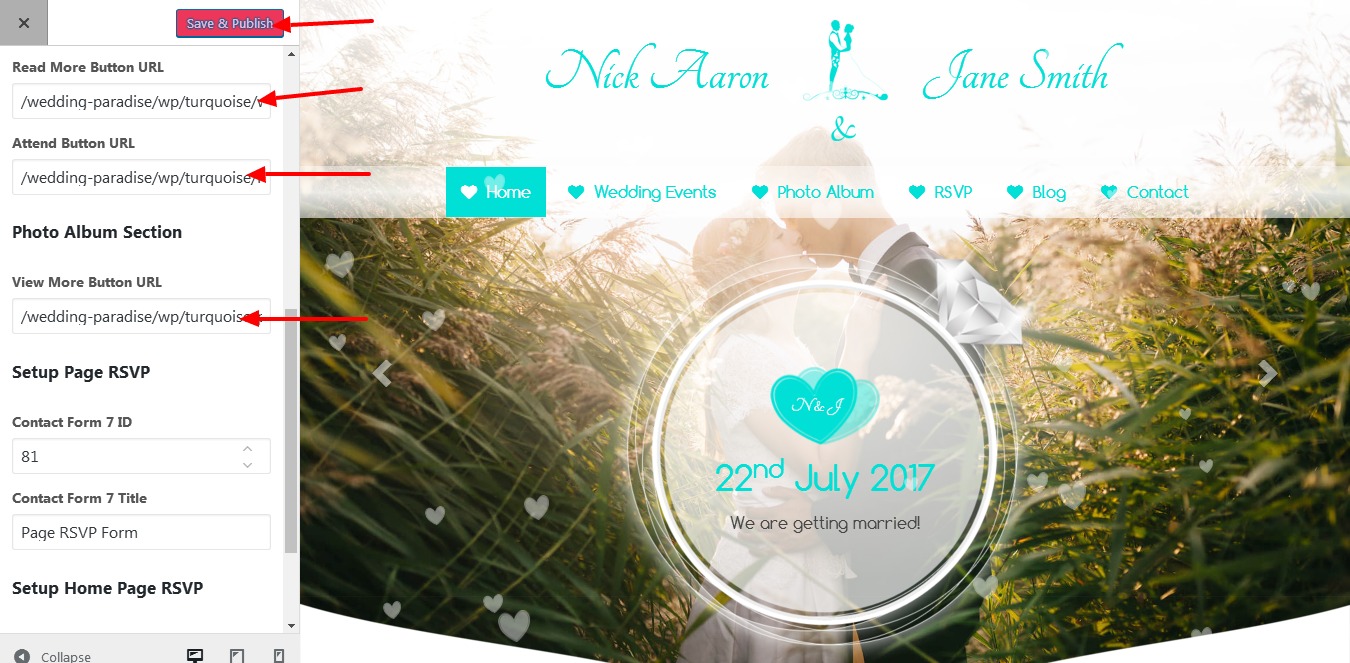
Below you can update read more button URL and Event Page Attend button URL
Footer
Go to menu Appearance > Customize. Now you'll see Customization Panel.
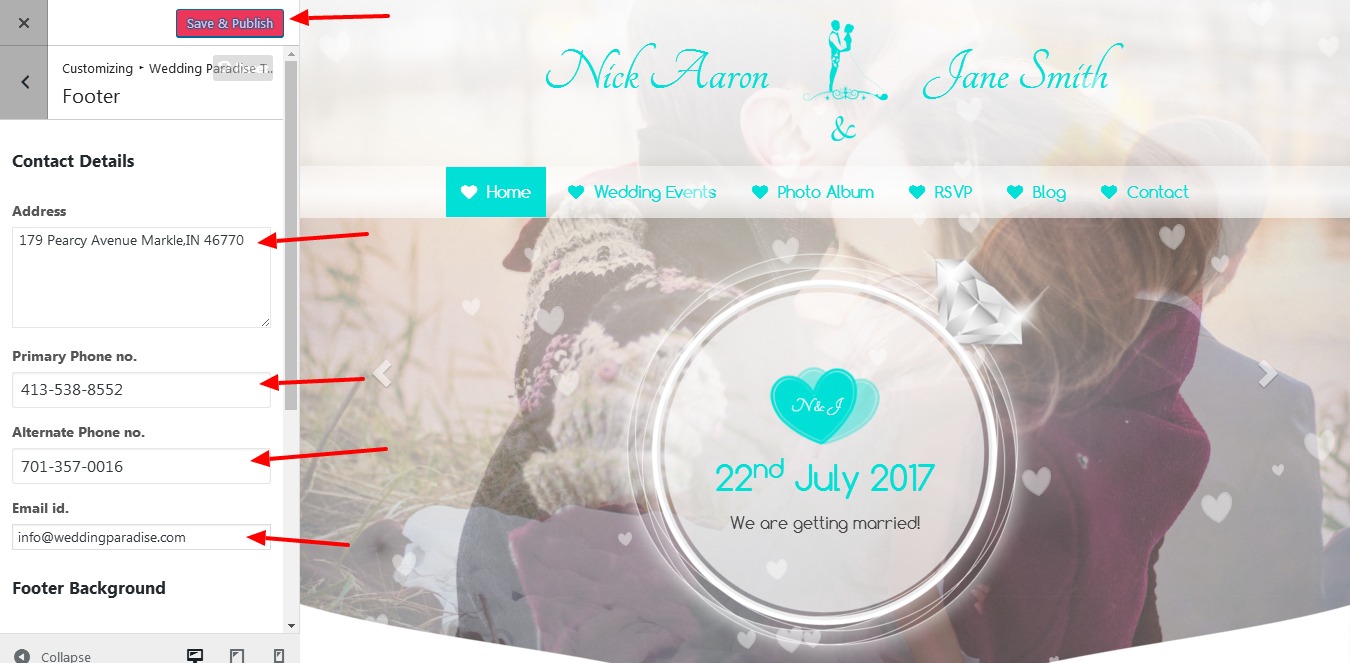
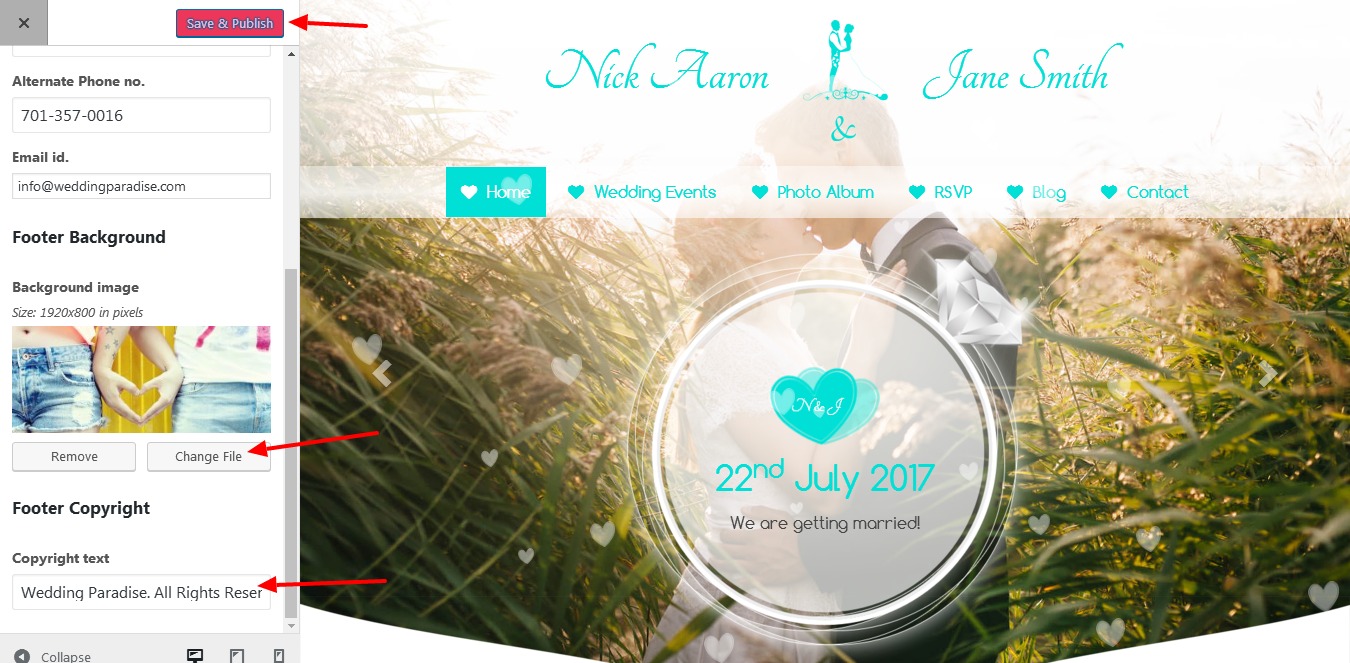
Now open Wedding paradise Theme section > Footer. Here you can update Footer Details and Click on Save & Publish
Google Map
Go to menu Appearance > Customize. Now you'll see Customization Panel.
Now open Wedding paradise Theme section > Google Map. Here you can update Google Map and Click on Save & Publish
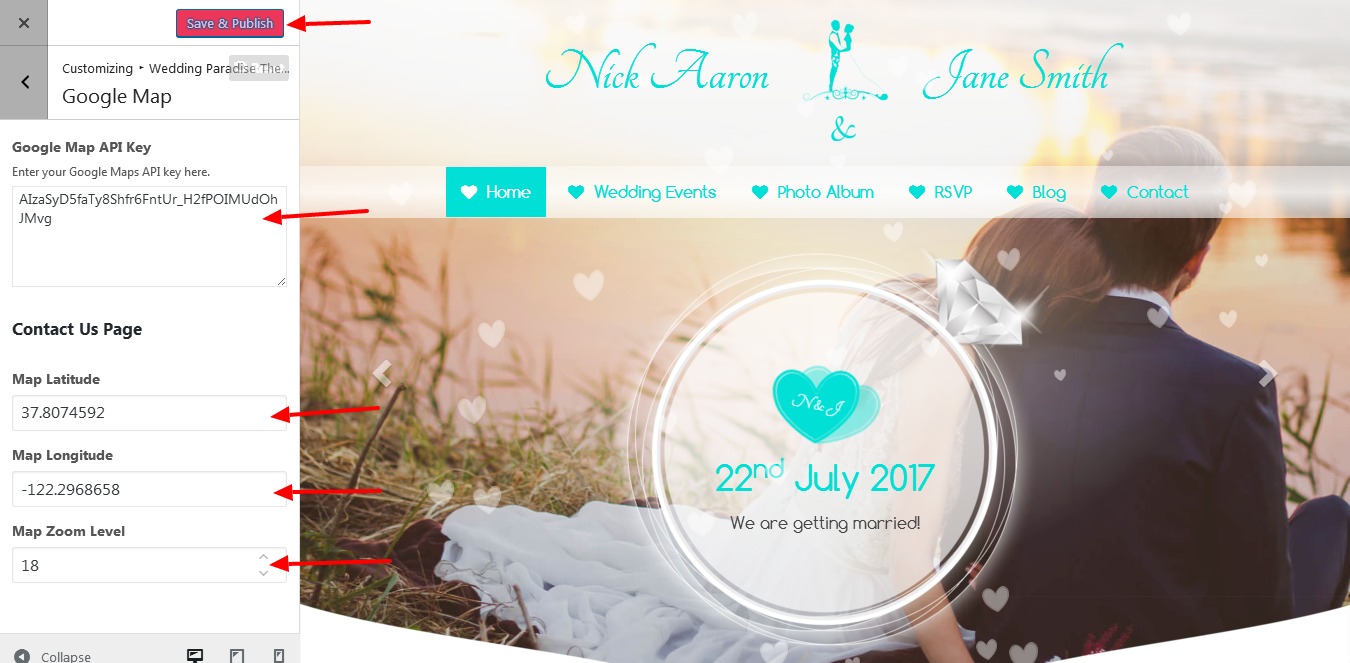 Check this link to Generate New Map Api : https://developers.google.com/maps/documentation/javascript/get-api-key
Adding Bridesmaid / Groomsmen
Go to menu Members > Add Member. Here you can Add New Members to Bridesmaid / Groomsmen. Click on Publish
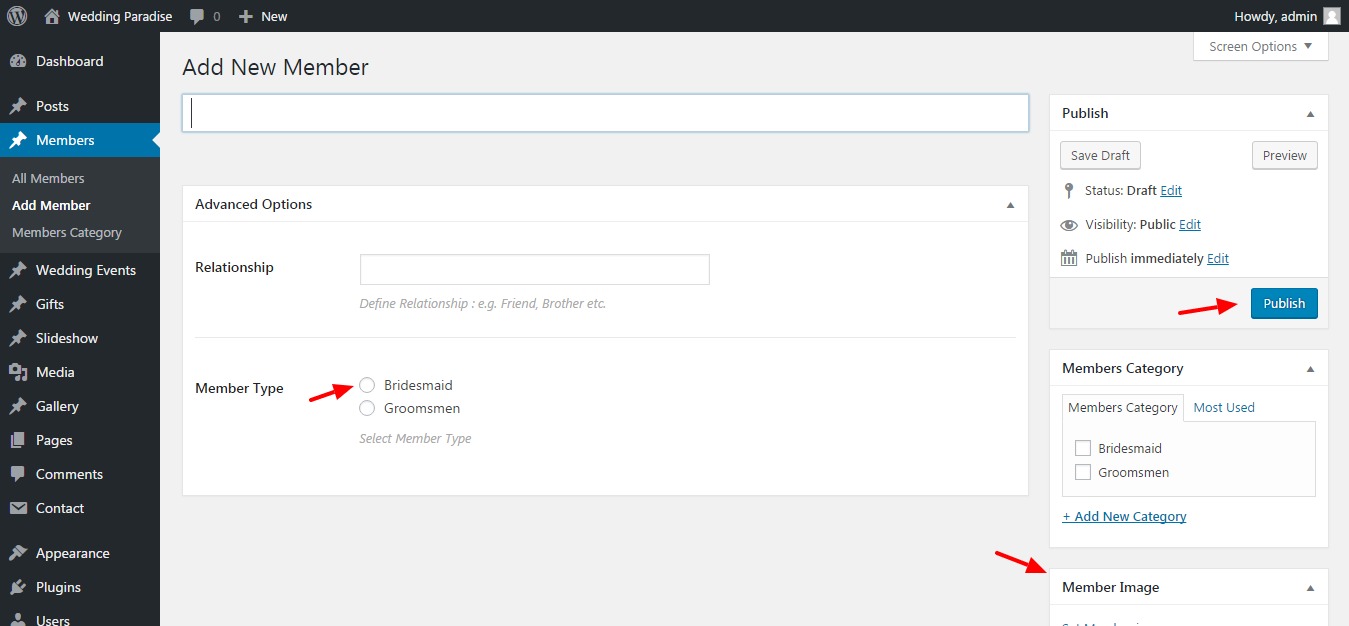
Adding Events
Go to menu Wedding Events > Add Event. Here you can Add New Events to Events Page. Use Lat Long Co-ordinates to locate your event place. Click on Publish
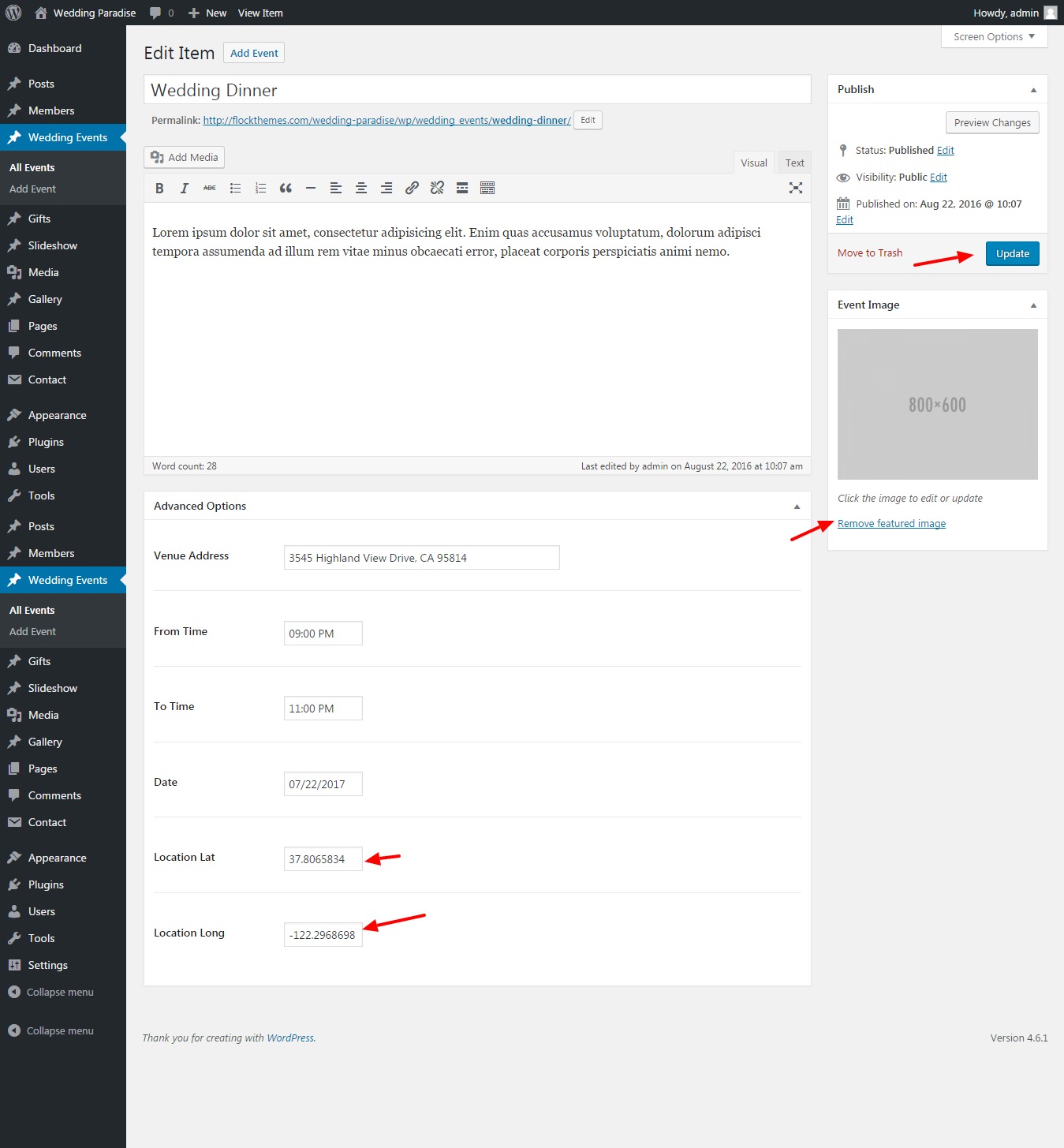 Check this link to Generate co-ordinates : http://www.mapcoordinates.net/en
Adding Gifts
Go to menu Gifts > Add New Gift. Here you can Add New Gifts to Home page Section. Click on Publish
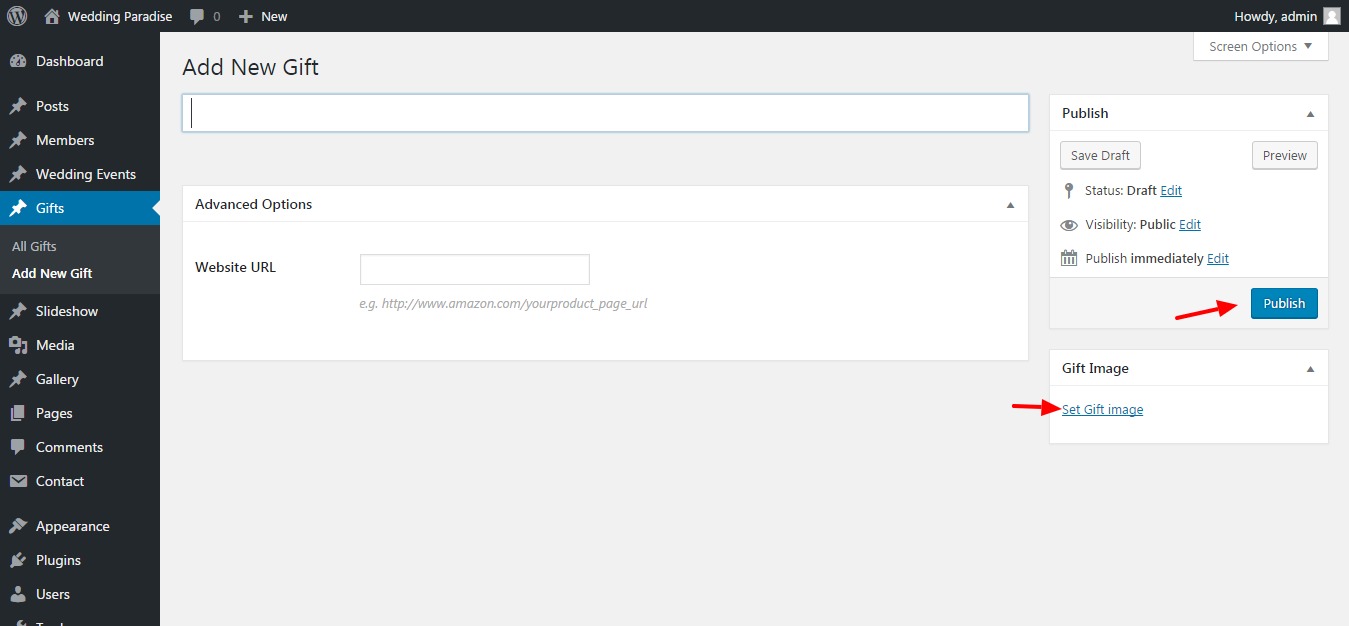
Adding Home Page Banner
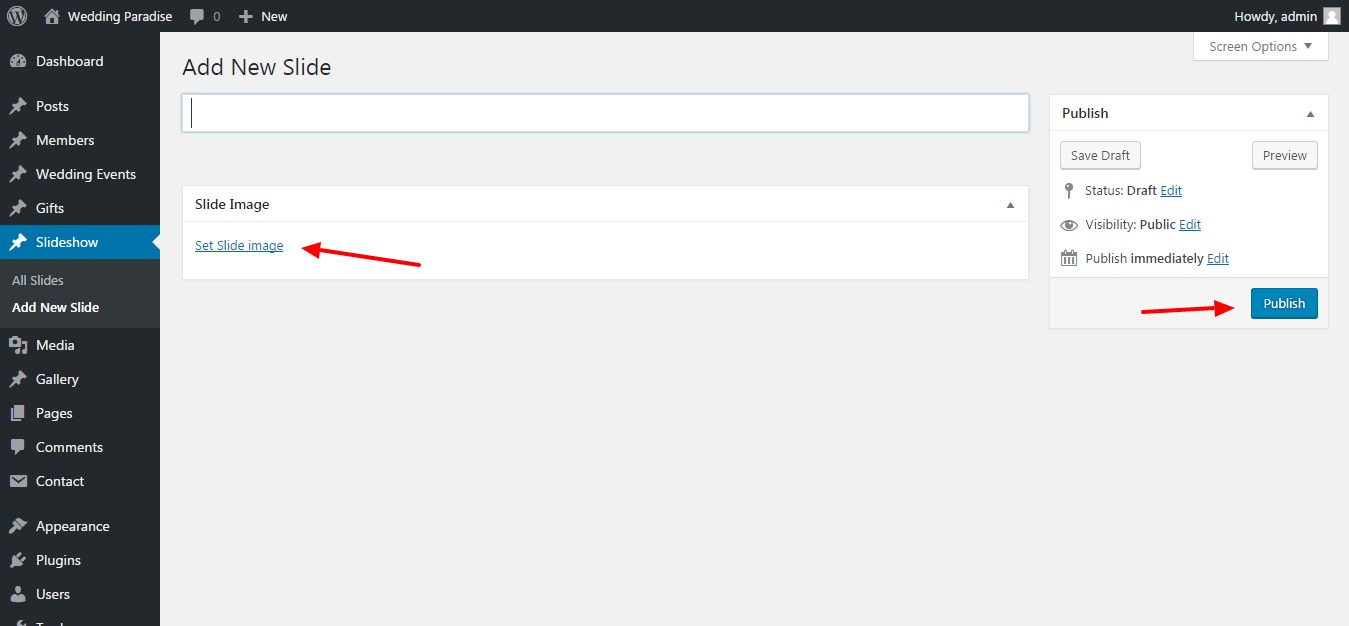
Go to menu Slideshow > Add New Slide. Here you can Add New Slides to Home page banner. Click on Publish
Adding Gallery
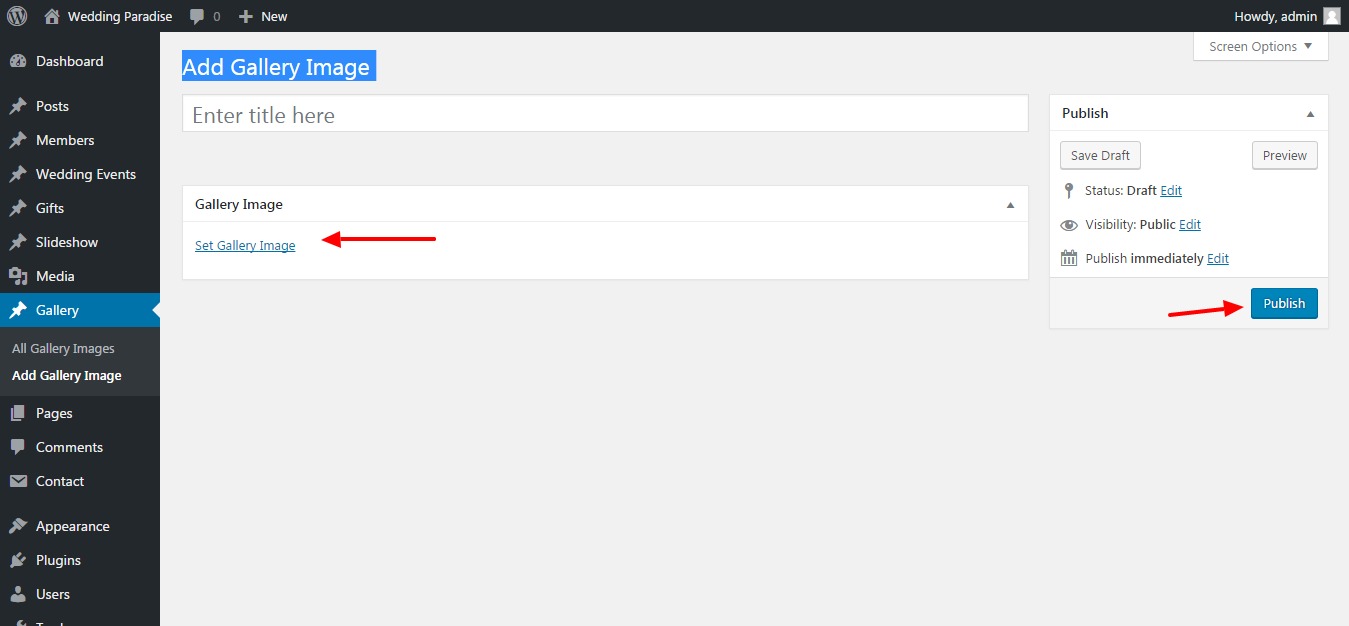
Go to menu Gallery > Add Gallery Image. Here you can Add New Photos to Photo Album Page. Click on Publish
Changing Songs in SoundCloud
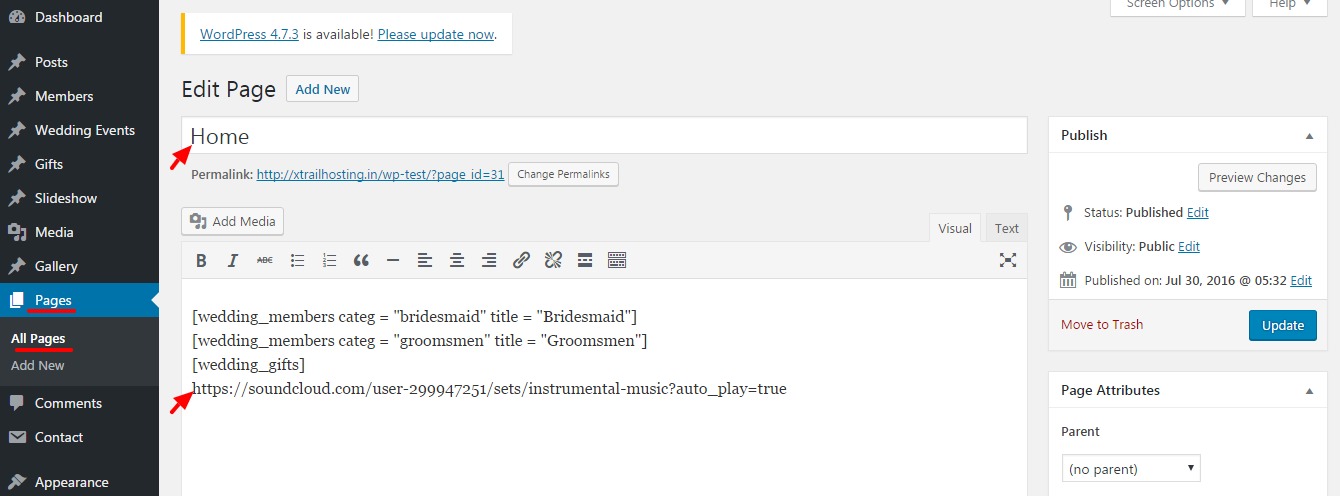
Go to menu Pages > All Pages. Now edit page Home / Home - one page.
Here you can replace your new link to SoundCloud playlist and Click on Update.
Setup Instagram
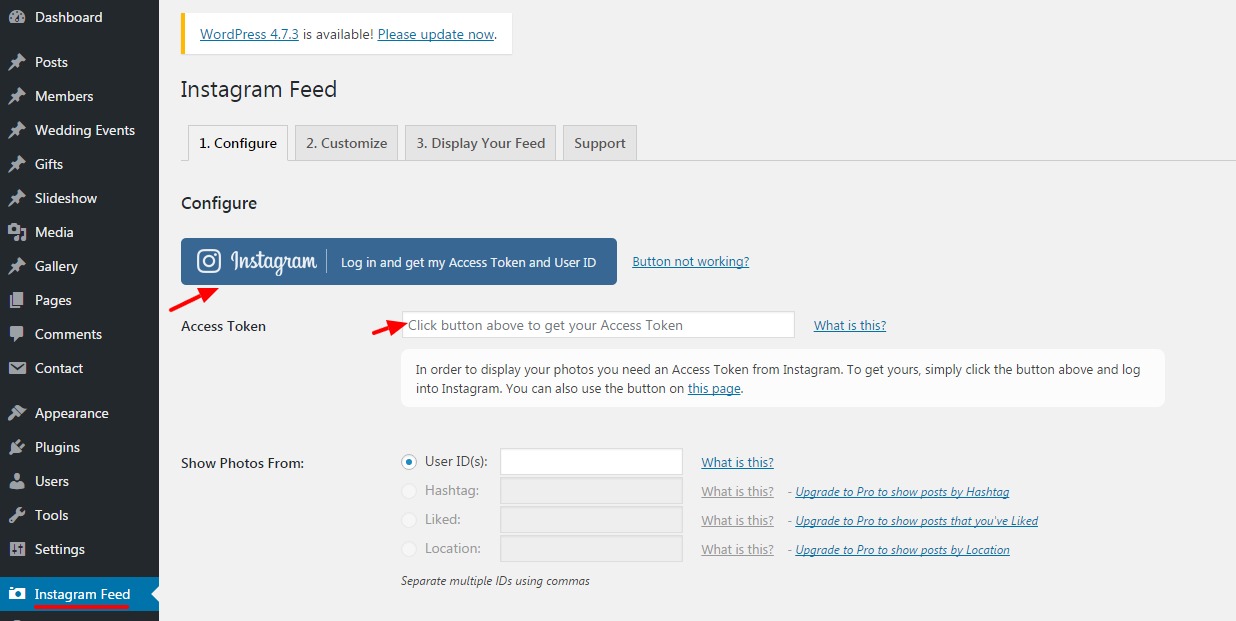
Go to menu Instagram Feed. Now login with your Instagram Credentials and copy the generate access token to its input and save
Choosing One Page / Countdown / Invitation
Go to menu Appearance > Customize. Now you'll see Customization Panel.
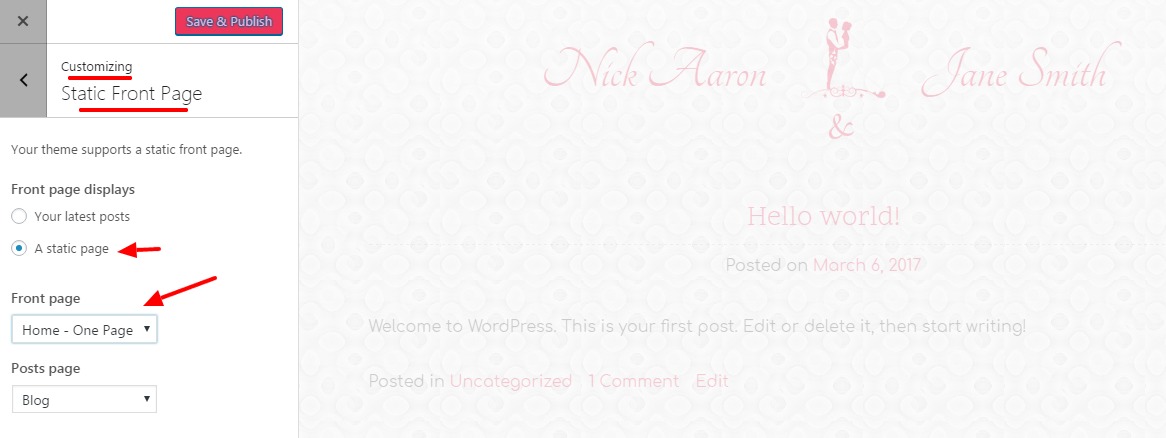
Now open Static Front Page section > Choose Static HomePage > select Home - One page to set as HOME - One page. To set navigation to vertical please see Menu / Navigation section. Now setup One Page menu from Navigation section. Kindly check Video for detailed walkthrough of One Page Setup Click here
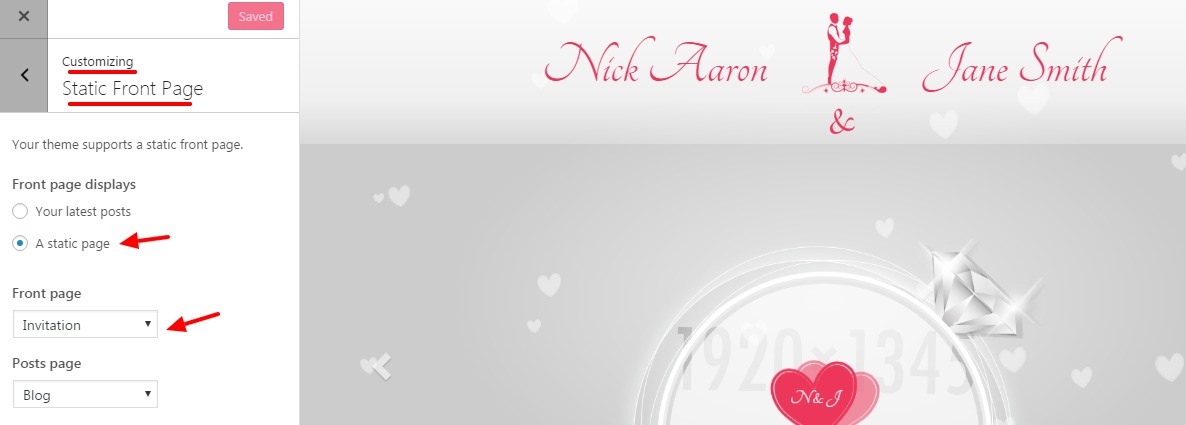
To setup Invitation as Home page
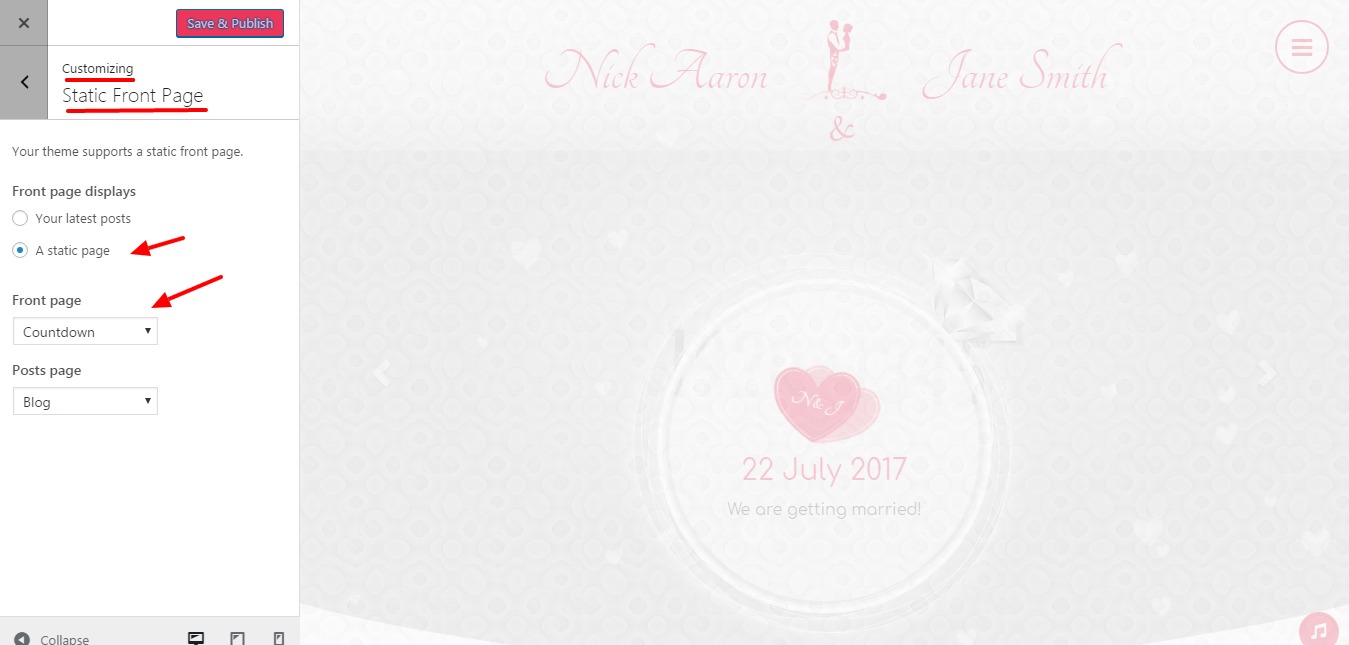
To setup Countdown as Home page
To set navigation to vertical please see Menu / Navigation section
Changing Navigation
Go to menu Appearance > Customize. Now you'll see Customization Panel.
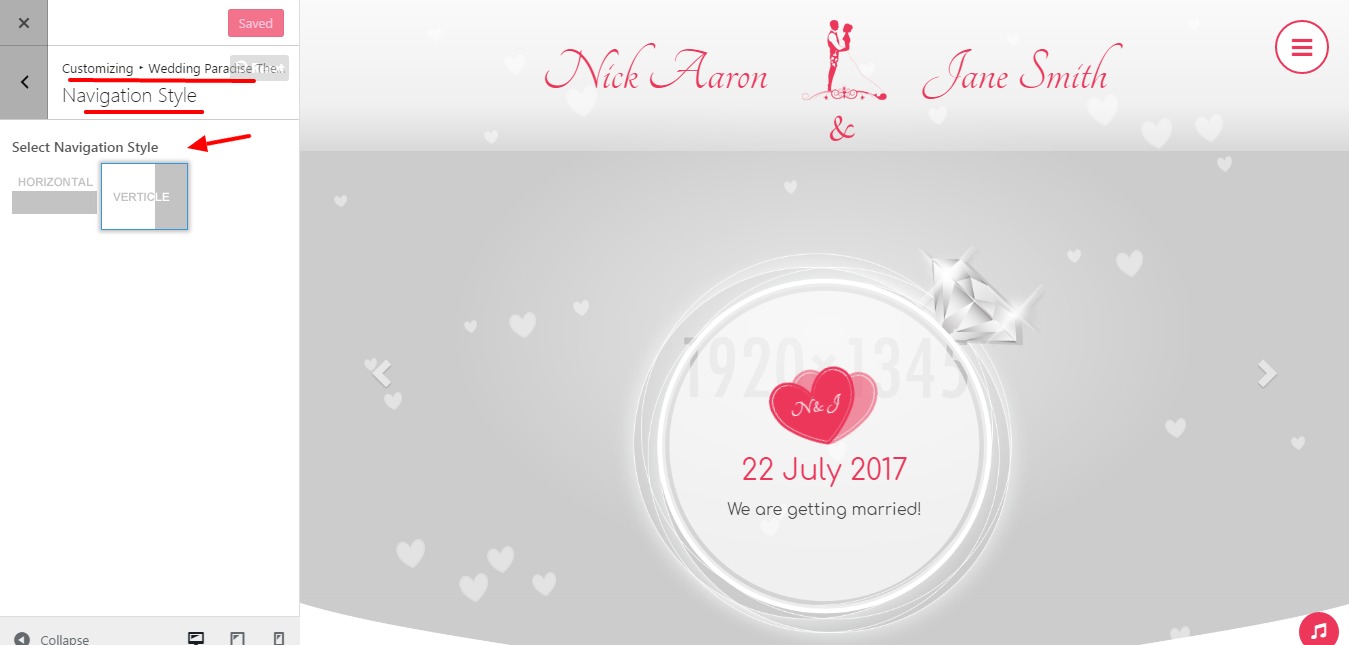
Now open Wedding paradise Theme section > Navigation Style. Here you can change Navigation from Horizontal to Vertical and Click on Save & Publish
Live Video Streaming Setup
CSS Setup
Go to menu Appearance > Customize. Now you'll see Customization Panel.
Click on Additional CSS tab
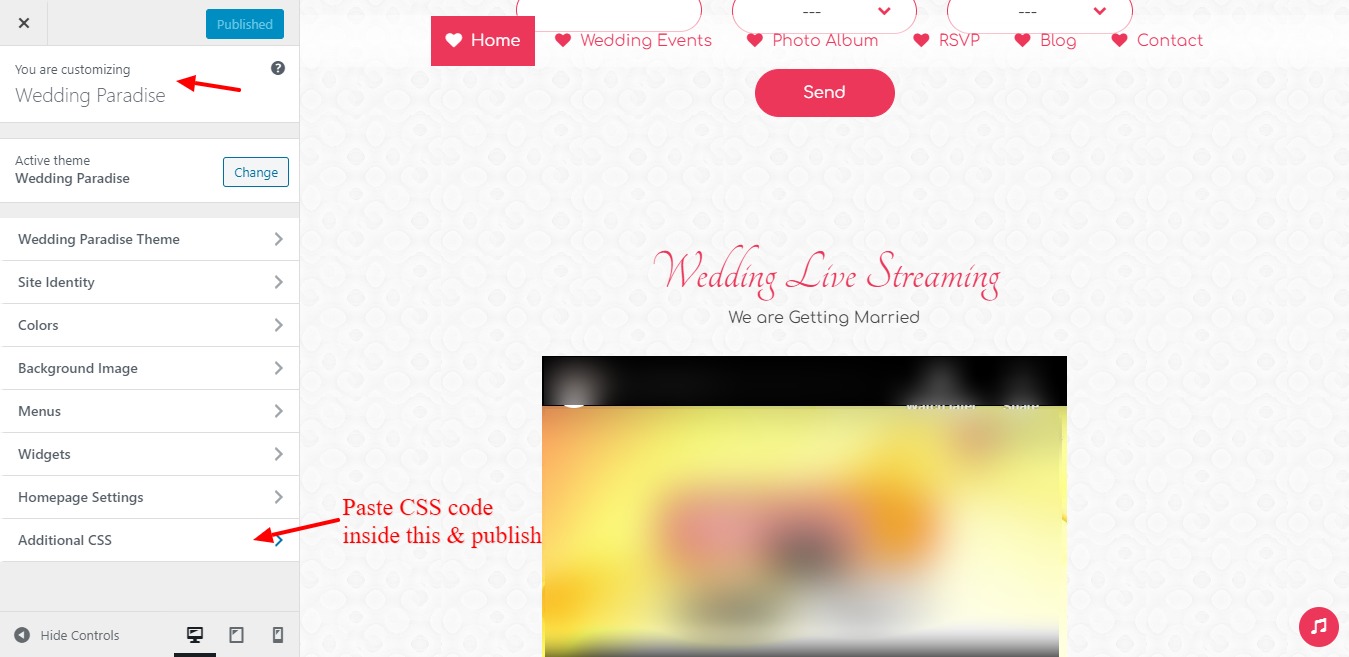
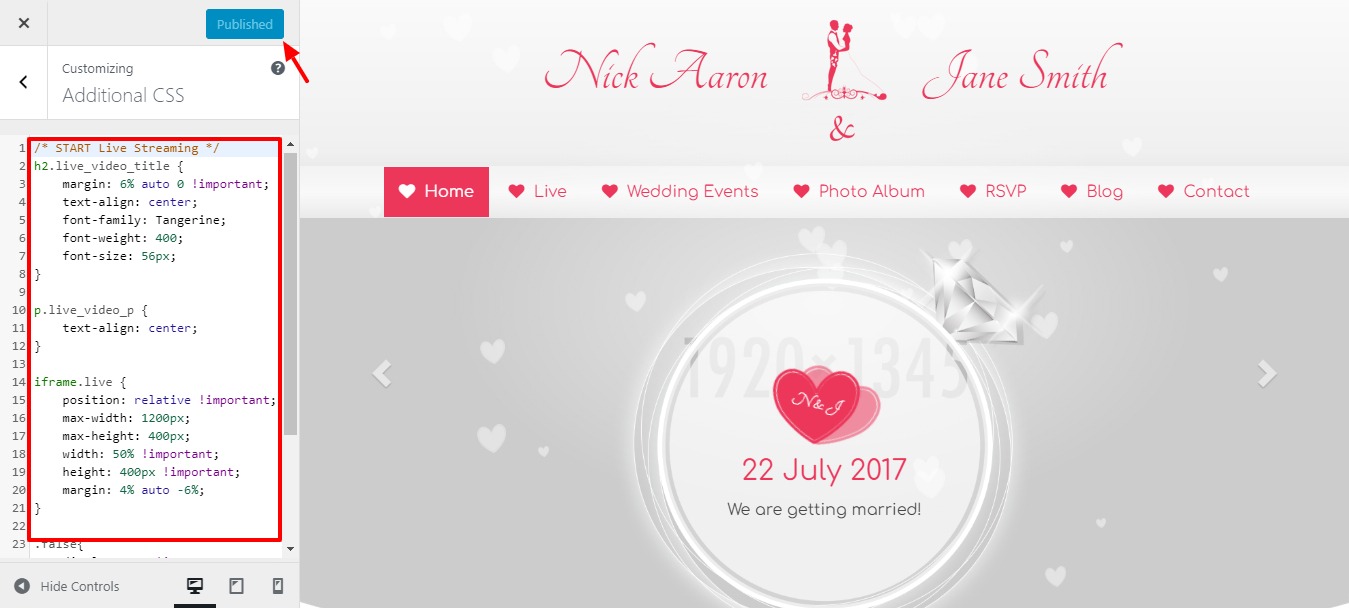
Add below provided CSS Code and Click on Publish
HTML Setup
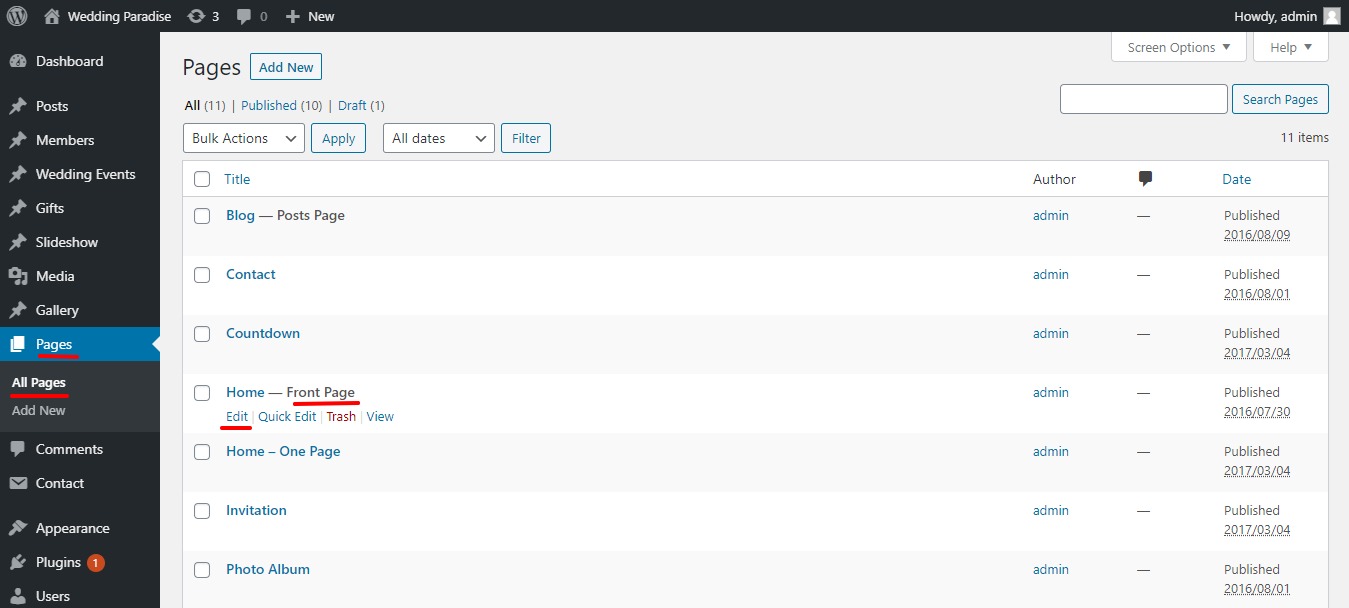
Go to menu Pages > All Pages. Now you'll see all pages select Edit front page to add codes in Panel.
select Edit as HTML / after publish click on convert to HTML
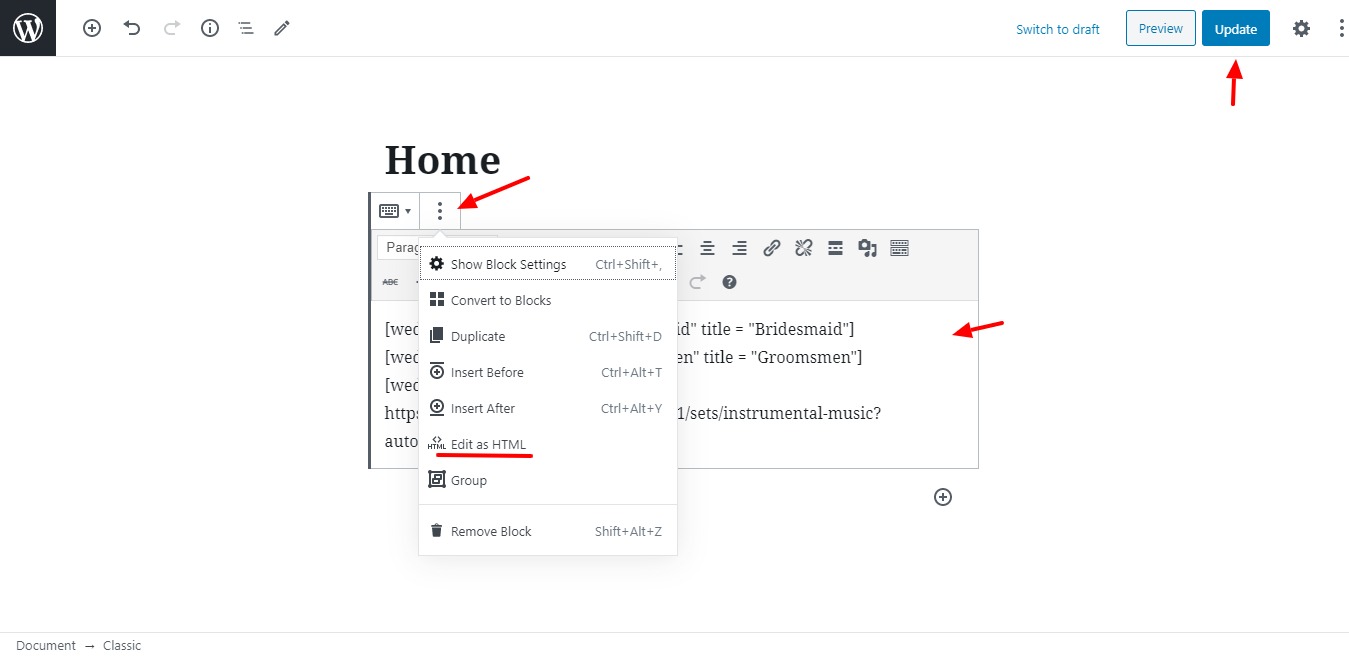
Add below given HTML CODE and UPDATE Page
Facebook, YouTube Live streaming can be done via Embed code you can replace your own generated code,
kindly add class attribute to iframe to work align and size properly.
Useful Links:
Facebook live Video Iframe Generator : Click here
YouTube live Video Iframe Generator : Click here
MENU URL Setup
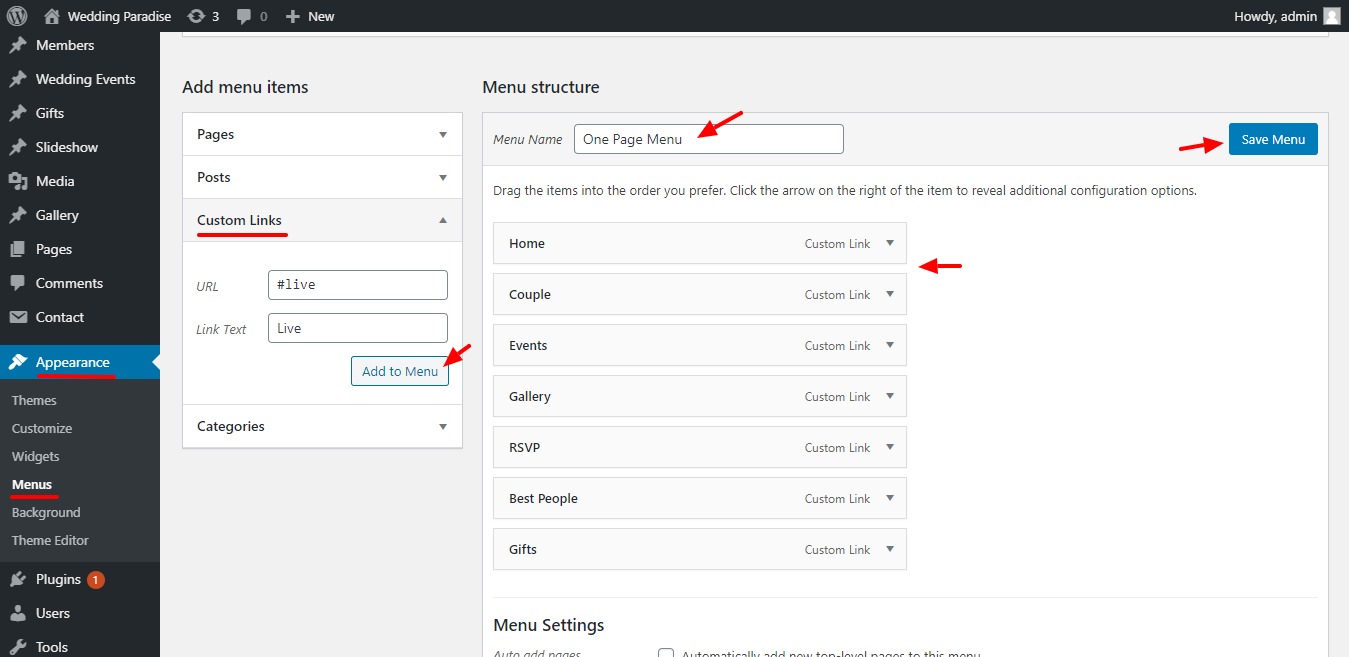
Now go to menu Appearence > Menus. Select (Primary menu) and you can add custom URL. Click on Save Menu
Language Translation Setup
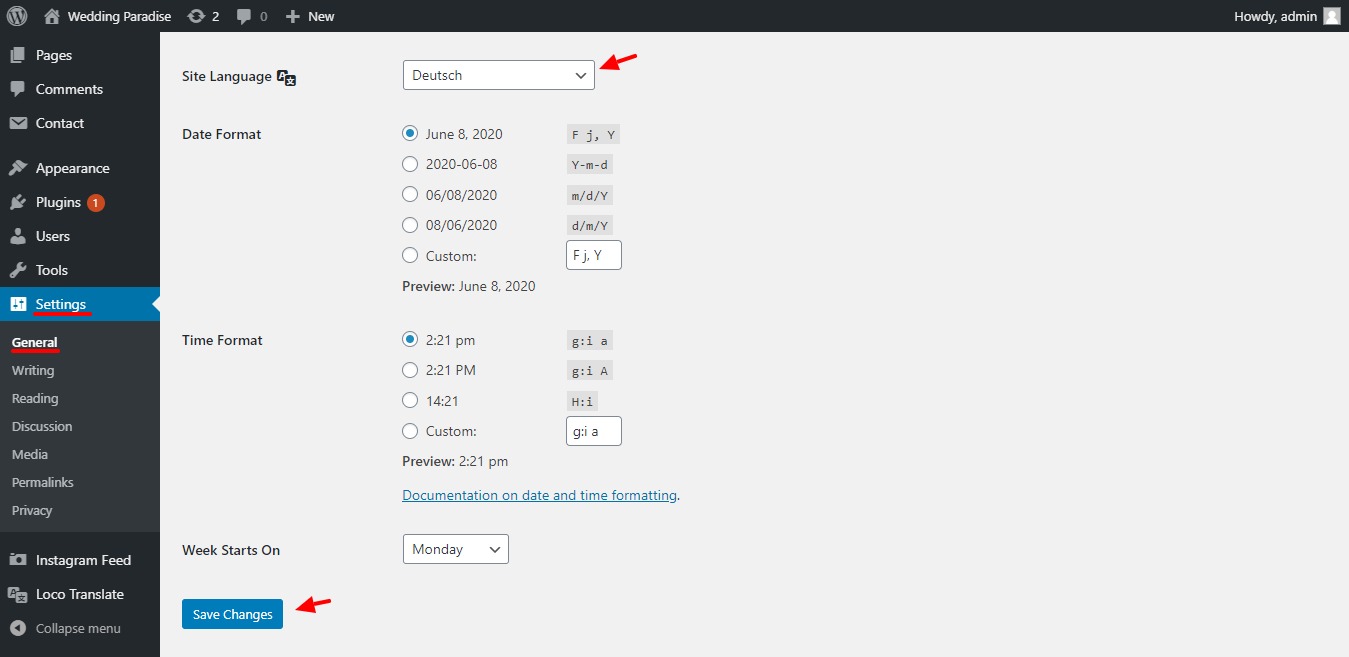
Go to menu Settings > General. Now you'll see Site Language drop down, Select your prefered local language to install. Click on Save Changes
Revert back to English if you want to use English Language. Click on Save Changes
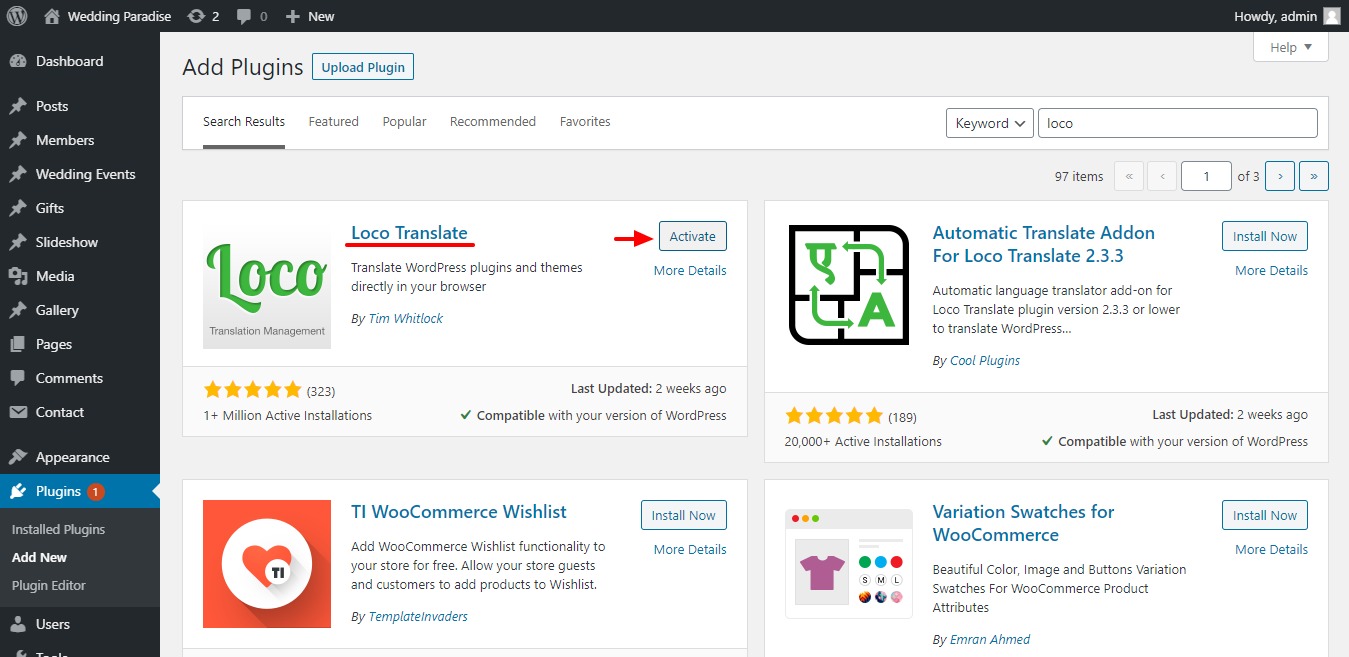
Go to menu Plugin > Add New. Find "Loco Translate" to install and Activate
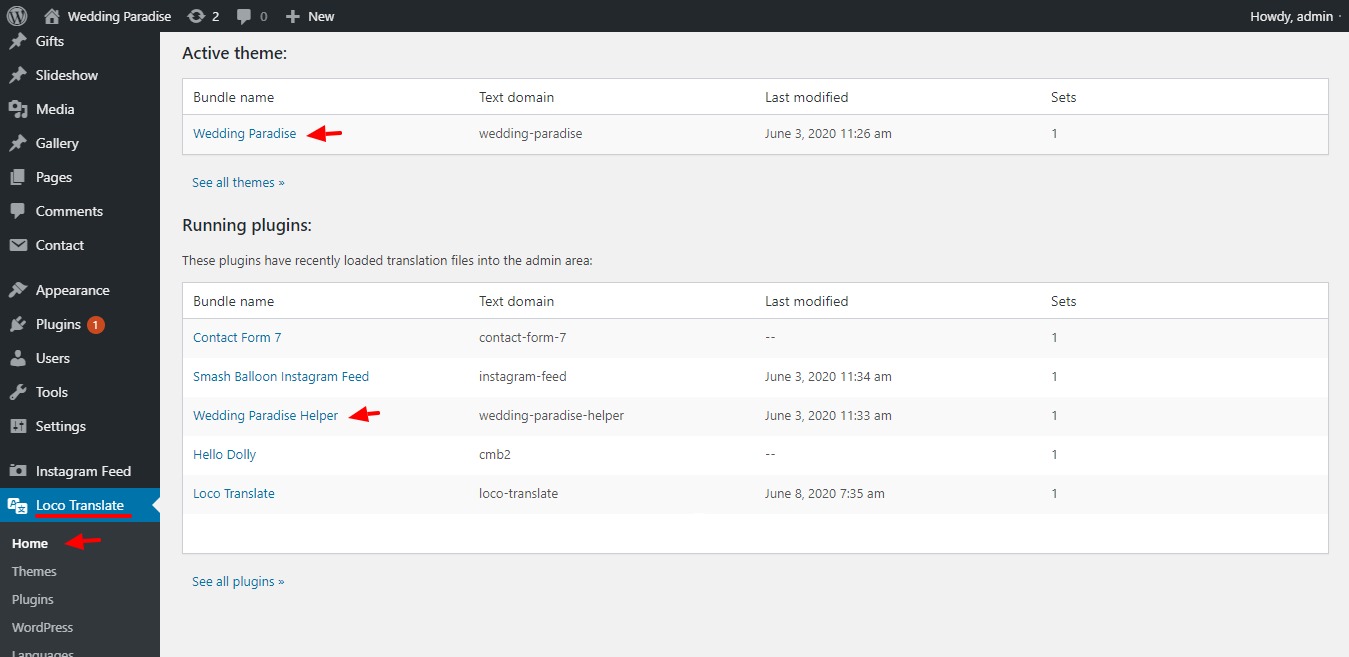
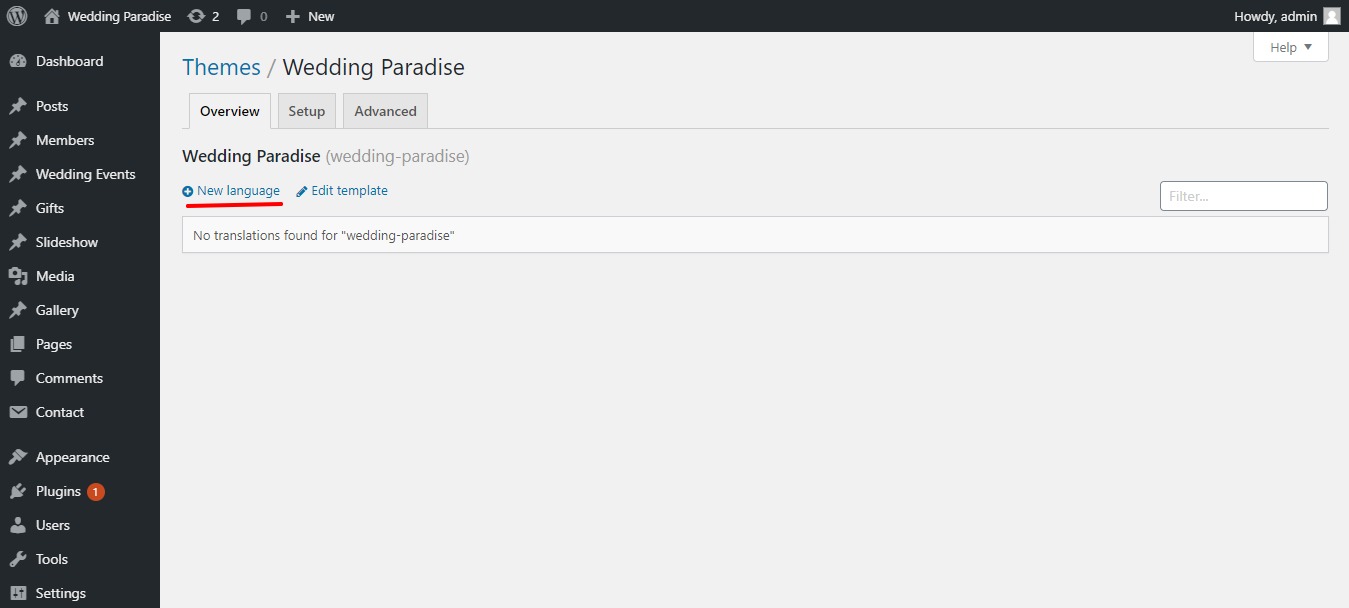
Go to menu Loco Translate, here are 2 files need to be translated named Wedding Paradise & Wedding Paradise Helper
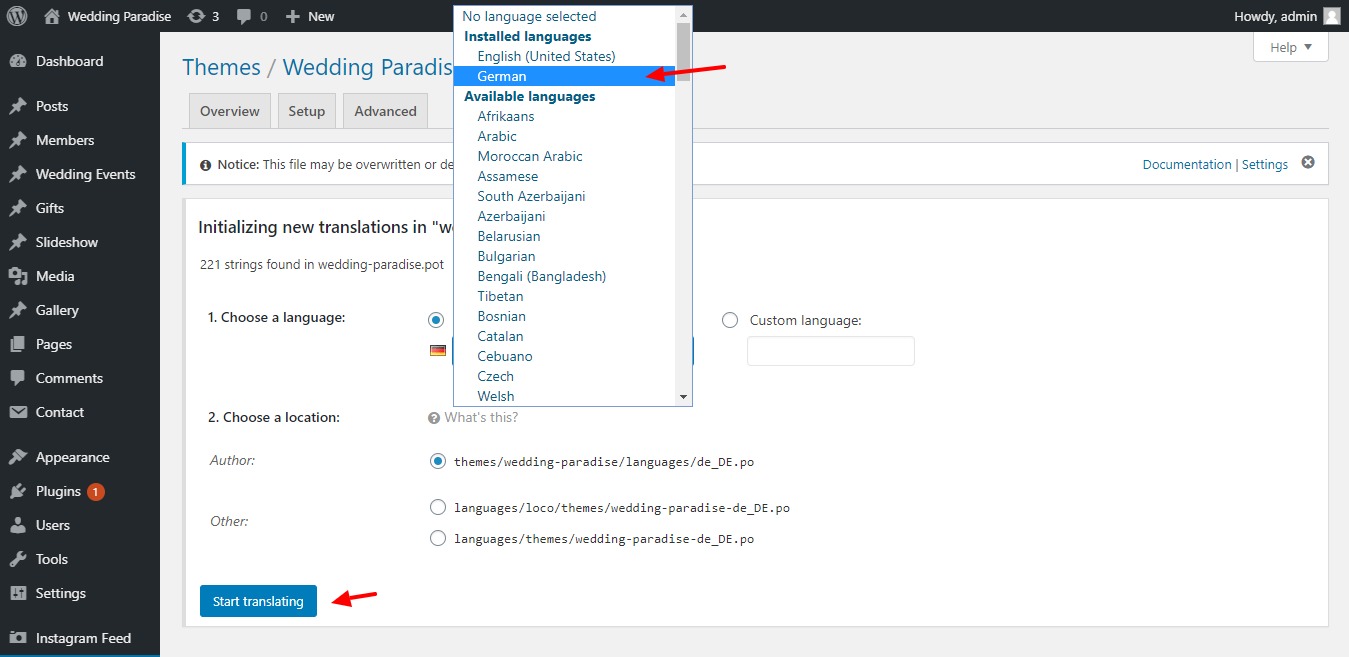
Click on New Language & on next page select your installed language from drop down & Click on Start Translating
Click on select text or search texts you want to translate and Save
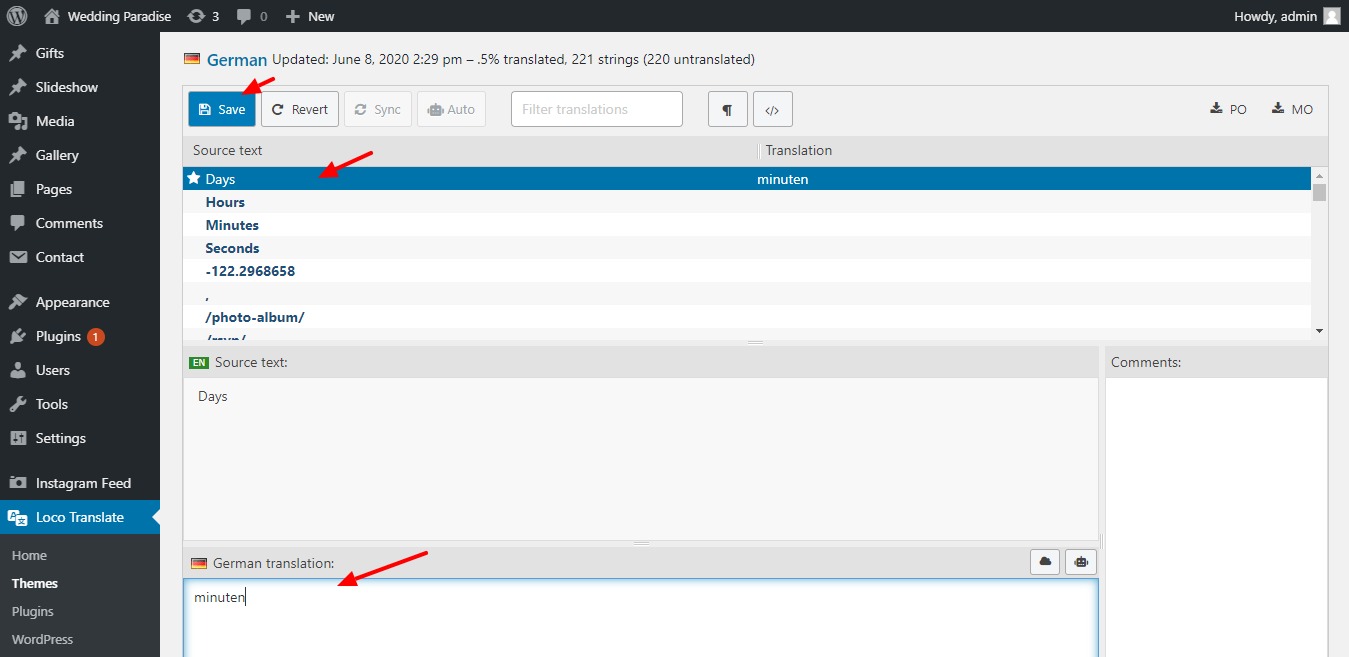
Note : To translate text Bridesmaid & Groomsmen, kindly edit Pages > Homepage to translate text.
Now go back to menu Settings > General > Site Language to installed language and Save Changes.
Video Demonstration
Theme Installation : Click here
Theme Customization : Click here
Adding Posts (Members, Events, Gifts, Slideshow, Photo Album) : Click here
One Page Theme Setup : Click here
Live Video Streaming Setup : Click here
Language Translation Setup : Click here